
Unicode Fonts
How to Copy and Paste Fonts on iPhone and Android
Learn how to copy and paste fonts on iPhone and Android, test styled text in popular apps, and fix boxes, failed pastes, or disappearing characters.

Contents
- How to Copy and Paste Fonts on iPhone and Android: Quick Steps
- What Are Copy-and-Paste Fonts?
- Device-Specific Instructions
- Copy and Paste Fonts on iPhone
- Copy and Paste Fonts on Android
- Which Apps Support Fancy Fonts?
- TikTok
- Discord
- X
- Fix Boxes, Failed Pastes, and Disappearing Text
- Fancy Fonts Appear as Boxes
- The Text Will Not Paste
- The Text Disappears After Saving
- Best Practices for Readable Fancy Text
- Accessibility Note
- Frequently Asked Questions
- Why don't fancy fonts work in Instagram captions?
- Why do fancy fonts show as boxes on my phone?
- Why will the fancy font not paste?
- Why does fancy text disappear after I save it?
- Is the process the same on iPhone and Android?
- Start With a Short Test
This guide explains how to copy and paste fonts on iPhone and Android without installing a font file or replacement keyboard. Enter a short phrase in a browser-based generator, choose a readable Unicode style, copy it, and paste it into a compatible app field.
Results can vary by character, app, field, device, operating system, and available font. Check the saved version before using decorative text in an important profile or post.
How to Copy and Paste Fonts on iPhone and Android: Quick Steps
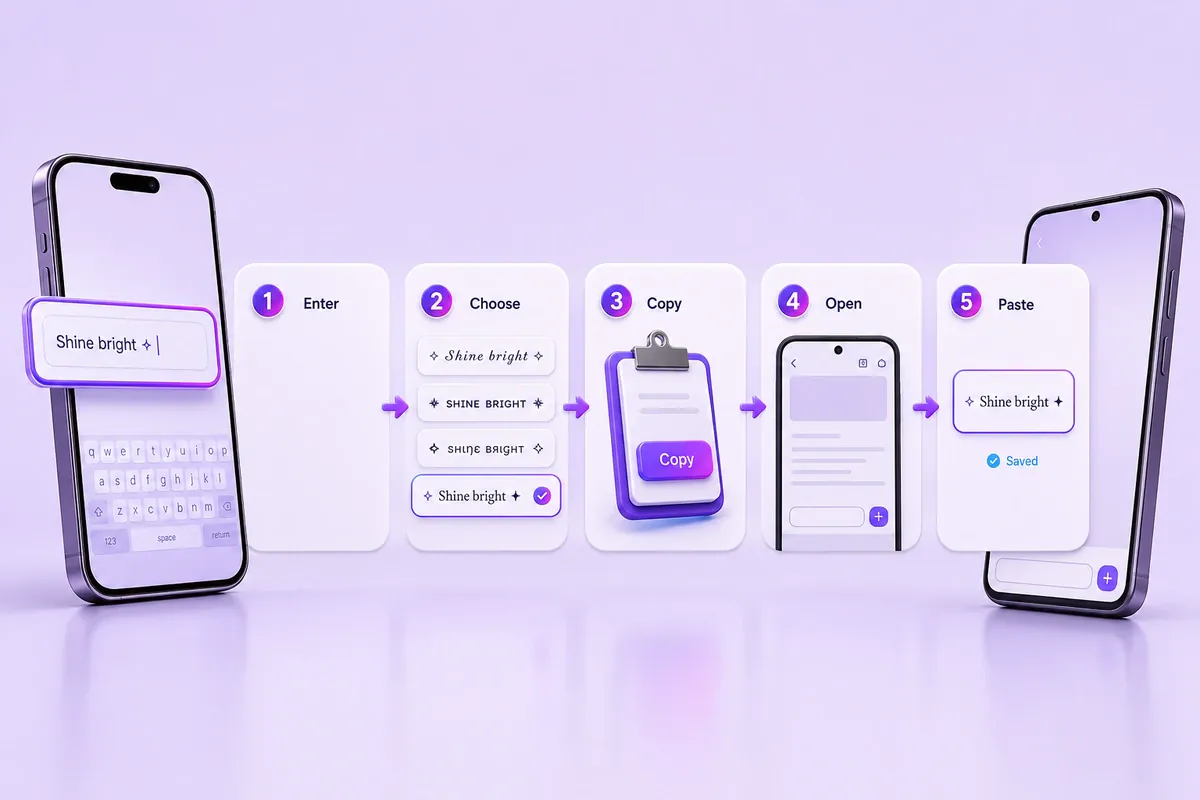
Follow these five steps:
- Open the FontifyText font generator and enter your text.
- Choose a style that keeps each letter, number, and symbol readable.
- Tap Copy beside the result.
- Open the destination app and select its caption, bio, message, or display-name field.
- Paste the text, preview it, and check the saved result.
For example, enter Weekend update, choose a moderate bold style, and paste it into a draft caption. Check that every character remains visible after saving.
Keep names, dates, prices, links, and contact details in plain characters when readers must understand them quickly.
What Are Copy-and-Paste Fonts?
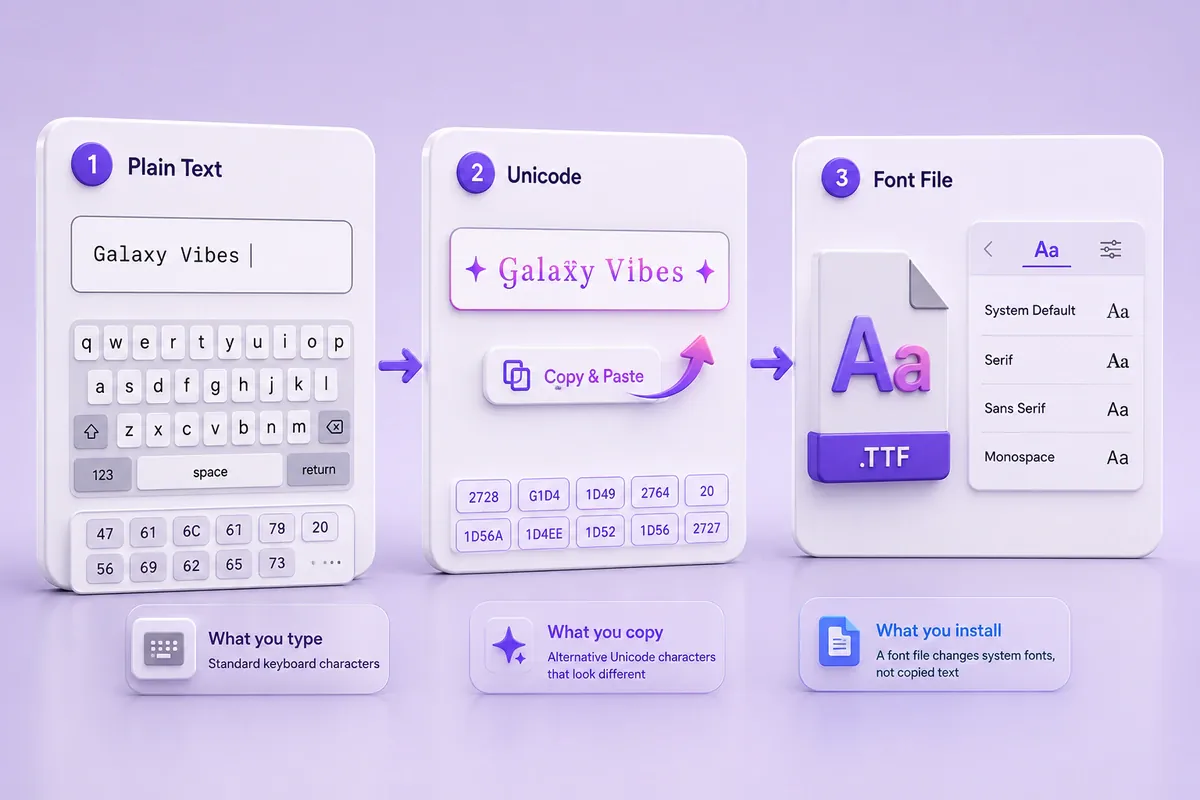
Most fancy fonts on phone apps are Unicode characters rather than installed typefaces.
Compare these examples:
- Plain text:
Hello - Styled Unicode text:
𝗛𝗲𝗹𝗹𝗼
The second version looks bold, but the phone is not applying a bold font setting. Each visible letter is a different Unicode character that can be copied like ordinary text.
The receiving app and device still need suitable glyphs to display those characters. When glyph support is unavailable, a character may appear as a box, question mark, or replacement symbol.
Unicode explains the relationship between characters, fonts, and visible glyphs in its fonts and keyboards guidance.
Styles with fewer combining marks and decorative symbols are generally easier to inspect and troubleshoot, although no style is guaranteed to work in every field.
Device-Specific Instructions
The copying process is similar on both phone types, but the clipboard controls and menu layout can differ.
Copy and Paste Fonts on iPhone

Open Safari and visit FontifyText. Tap the input box and enter the words you want to style.
Begin with a short phrase. A heading, display name, or bio line is easier to inspect than a full paragraph.
Review several results before choosing one. Check punctuation, numbers, spaces, and accented letters because a style may not contain a matching character for every symbol.
Tap Copy beside the selected result. Open the target app and select its caption, bio, message, comment, or display-name field.
Press and hold inside the field if the editing menu does not appear immediately. Select Paste, then inspect the full line.
Before saving, check that:
- No characters have become boxes.
- Spaces and punctuation remain in place.
- The phrase fits within the field limit.
- Important details remain easy to read.
When pasting fails, copy the result again and check it in Apple Notes. If the text appears correctly, copy it from Notes and return to the destination app.
Practical example: Create a heading such as Travel Notes, paste it above a plain bio description, and leave the website and contact details in normal text. The Instagram fonts generator provides several styles for short profile text.
Copy and Paste Fonts on Android

Open Chrome or another mobile browser and visit FontifyText. Enter a short phrase and compare the available results.
Choose a style that keeps letters and punctuation clear. Text with many marks above or below each letter has a greater chance of displaying poorly.
Tap Copy beside your chosen style. A confirmation message may appear near the bottom of the browser.
Open the destination app, tap its text field, and press and hold. Select Paste when the menu appears. You may also be able to choose the copied item from the keyboard clipboard.
Clipboard menus differ between phone brands and keyboards. When pasting fails, check the text in Google Keep, Samsung Notes, or another basic text field.
If it works there, copy it again from the note and return to the destination app. Opening FontifyText directly in Chrome may also help when an in-app browser interferes with copying.
Practical example: Generate a short status heading, copy it through the keyboard clipboard, and place it in a WhatsApp draft. Keep the main message in plain text.
Which Apps Support Fancy Fonts?

The table below is general guidance, not a compatibility guarantee. Results can vary by character, field rules, app version, operating system, device, and available font.
| App | Good first fields to try | Fields or uses that may be more restrictive |
|---|---|---|
| Captions, bio, comments, messages, display name | Username and text containing many combining marks | |
| Messages, status text, About text, group descriptions | Long decorative messages and text viewed on different devices or app versions | |
| TikTok | Captions, bio, nickname | Username and other account fields with stricter rules |
| Discord | Messages, bio, server nickname | Username, channel names, and fields checked by moderation bots |
| X | Posts, bio, display name | The @handle and other technical account fields |
Captions, bios, comments, and display names are reasonable places to try a short Unicode style.
Start with one styled word. If the text changes after saving, remove unusual spacing and marks placed above or below the letters.
Use the Instagram fonts page as a style tool rather than proof that every result will work in every Instagram field.
Unicode text is separate from WhatsApp’s native message formatting.
WhatsApp offers native options for bold, italic, strikethrough, monospace, bulleted lists, numbered lists, quotes, and inline code. Its message-formatting guide explains those controls.
Native formatting is usually clearer for long or important messages. Decorative Unicode text is better kept to short headings, status lines, or accents.
TikTok
Captions, bios, and nickname fields are sensible places to try a short style. A username may follow stricter account rules.
Keep searchable names and essential profile wording in plain text. Check the saved result before replacing an existing profile name.
Discord
Unicode characters may appear in messages, bios, server nicknames, and other visible fields. Technical usernames, channel rules, and moderation bots can treat the same text differently.
Use the Discord fonts generator to try a short nickname or message. Check the result on mobile and desktop when practical.
X
X usernames accept only letters, numbers, and underscores, so keep the @handle plain. Decorative Unicode text is better suited to the display name, bio, or post text.
The official X username guidance explains the allowed characters for handles.
The Twitter and X fonts generator provides styles for visible profile text and short posts.
Fix Boxes, Failed Pastes, and Disappearing Text
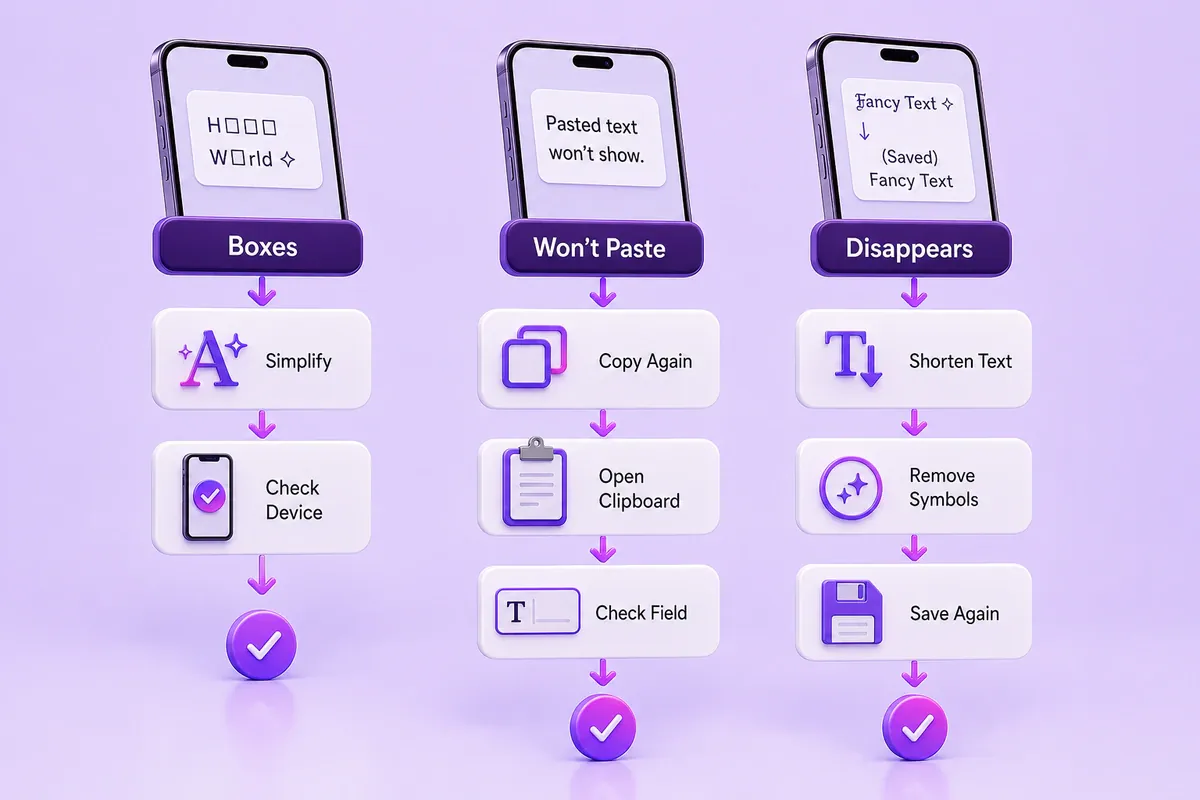
Most copy-and-paste problems fall into three groups.
Fancy Fonts Appear as Boxes
A box or replacement symbol can mean that the current app, device, operating system, or available font does not have a suitable glyph for a character.
Try these steps:
- Choose a simpler bold, italic, serif, or sans-serif style.
- Remove symbols and marks placed above or below letters.
- Replace only the characters that display incorrectly.
- Update the phone and destination app.
- Check the text in Notes, Keep, or a browser field.
- View it on another device when practical.
- Keep essential wording in plain text.
Example: If styled numbers become boxes but the letters remain visible, keep the styled heading and replace the date with ordinary numbers.
The Text Will Not Paste
First, confirm that the text was copied.
Return to FontifyText, tap Copy again, and paste the result into Notes or Keep. If it appears there, copy it from the note and retry the destination app.
You can also:
- Open the generator directly in Safari or Chrome.
- Tap a different part of the destination field.
- Try another field in the same app.
- Use the keyboard clipboard where available.
- Remove decorative marks.
- Shorten the phrase.
The Text Disappears After Saving
The app or field may reject, normalize, or remove certain characters when the content is saved.
Paste a plain version first. Then add one styled word and save it again.
If the short version remains visible, add the remaining text in small parts. If it disappears, choose a basic style, remove combining marks, or try a display-name or bio field instead of a username.
Keep a plain-text copy before changing important profile information.
Best Practices for Readable Fancy Text
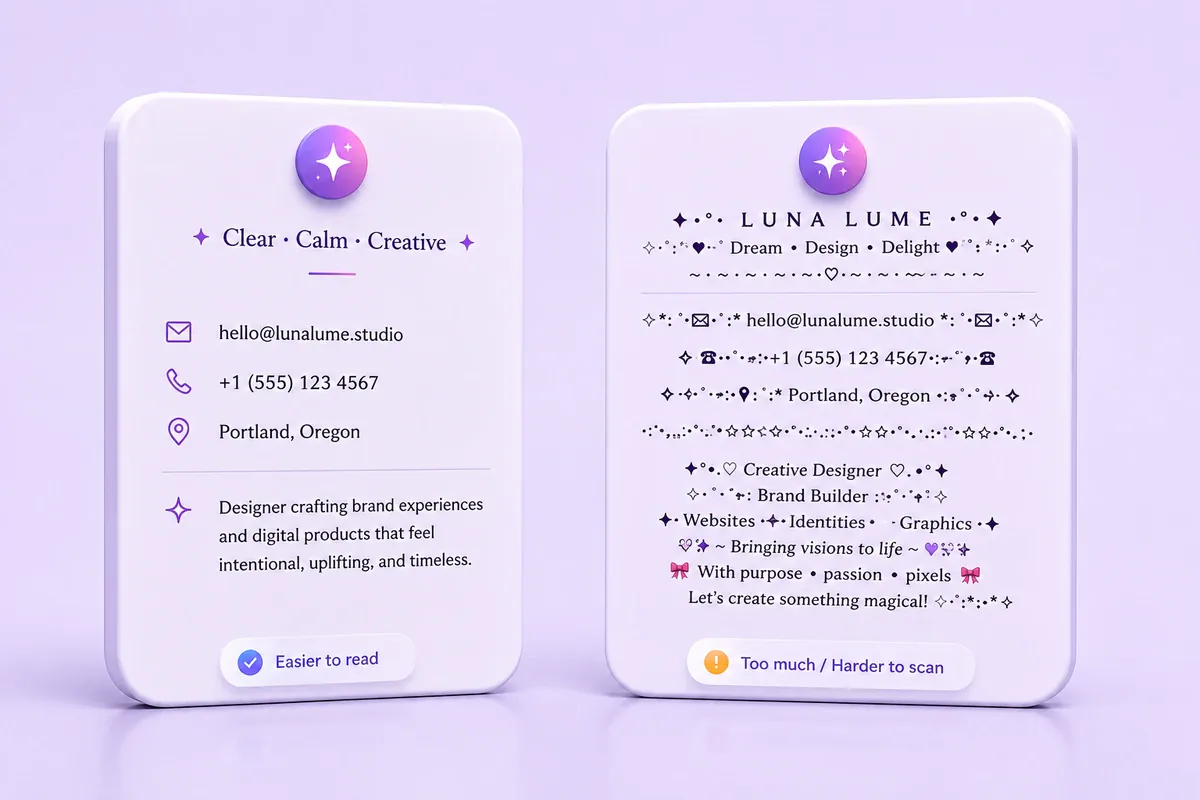
Decorative text works best as a small accent.
Use it for a short heading, selected word, display name, or brief status. Keep names, links, dates, prices, addresses, and instructions in plain characters.
A readable bio might look like this:
𝗧𝗿𝗮𝘃𝗲𝗹 𝗡𝗼𝘁𝗲𝘀
Weekend guides and local food
example.com
The heading carries the style, while the description and link remain clear.
Follow these practical rules:
- Style a few words rather than a full paragraph.
- Avoid text with many stacked marks.
- Keep a plain copy before editing a profile.
- Check the saved result rather than relying only on the editing preview.
- View the text on another device when practical.
- Use native app formatting for long messages.
- Do not place critical information only in decorative characters.
Accessibility Note
Decorative Unicode characters are not simply a visual font setting. They are different characters.
Assistive tools, search systems, and copy operations may handle them differently from ordinary letters. Plain text is the safer choice for account names, contact details, instructions, links, and information every reader needs.
Frequently Asked Questions
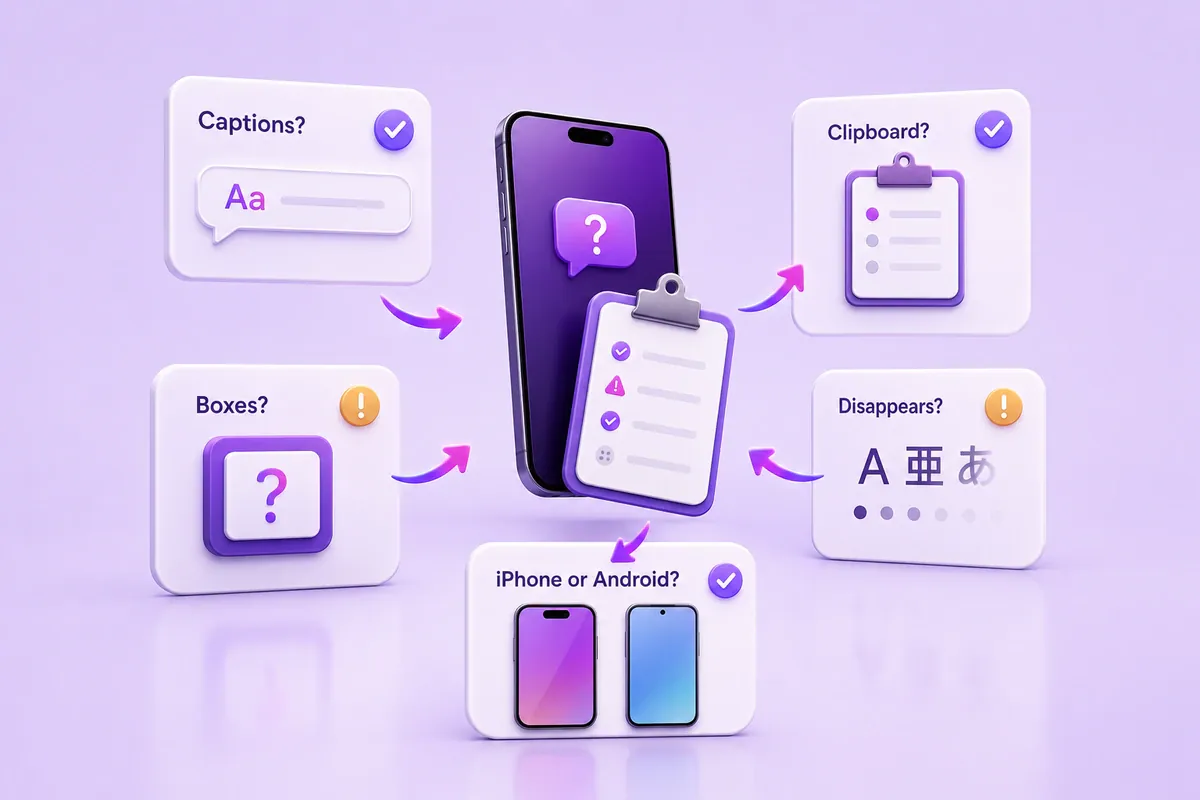
Why don't fancy fonts work in Instagram captions?
Instagram may reject, change, or remove some Unicode characters when a caption is saved.
Try one styled word first. Choose a basic bold or italic style, remove stacked marks, and check the published caption before adding more decorative text.
Why do fancy fonts show as boxes on my phone?
A box usually means the app, device, operating system, or available font cannot display a character.
Choose a simpler style, remove unusual symbols, and replace failed characters with plain text.
Why will the fancy font not paste?
The text may not have copied correctly, the editing menu may not have opened, or the destination field may reject pasted characters.
Copy it again, check it in Notes or Keep, and then retry the destination app.
Why does fancy text disappear after I save it?
The app or field may reject, normalize, or remove certain characters during saving.
Try one short word, remove combining marks, shorten the phrase, or use a bio or display-name field instead of a technical username field.
Is the process the same on iPhone and Android?
The basic process for how to copy and paste fonts on iPhone and Android is the same: enter text, choose a style, copy it, open an app, and paste it.
The main difference is the clipboard interface. iPhone commonly uses the press-and-hold editing menu, while Android may also provide keyboard clipboard history.
Start With a Short Test
The safest approach to how to copy and paste fonts on iPhone and Android is to begin with a short phrase, choose a readable Unicode style, and check the saved result in the exact field where it will appear.
Use plain text for essential details and decorative characters for brief accents. Open the FontifyText generator, create a short phrase, copy it, and check it in a draft before publishing.